Game pages and artwork
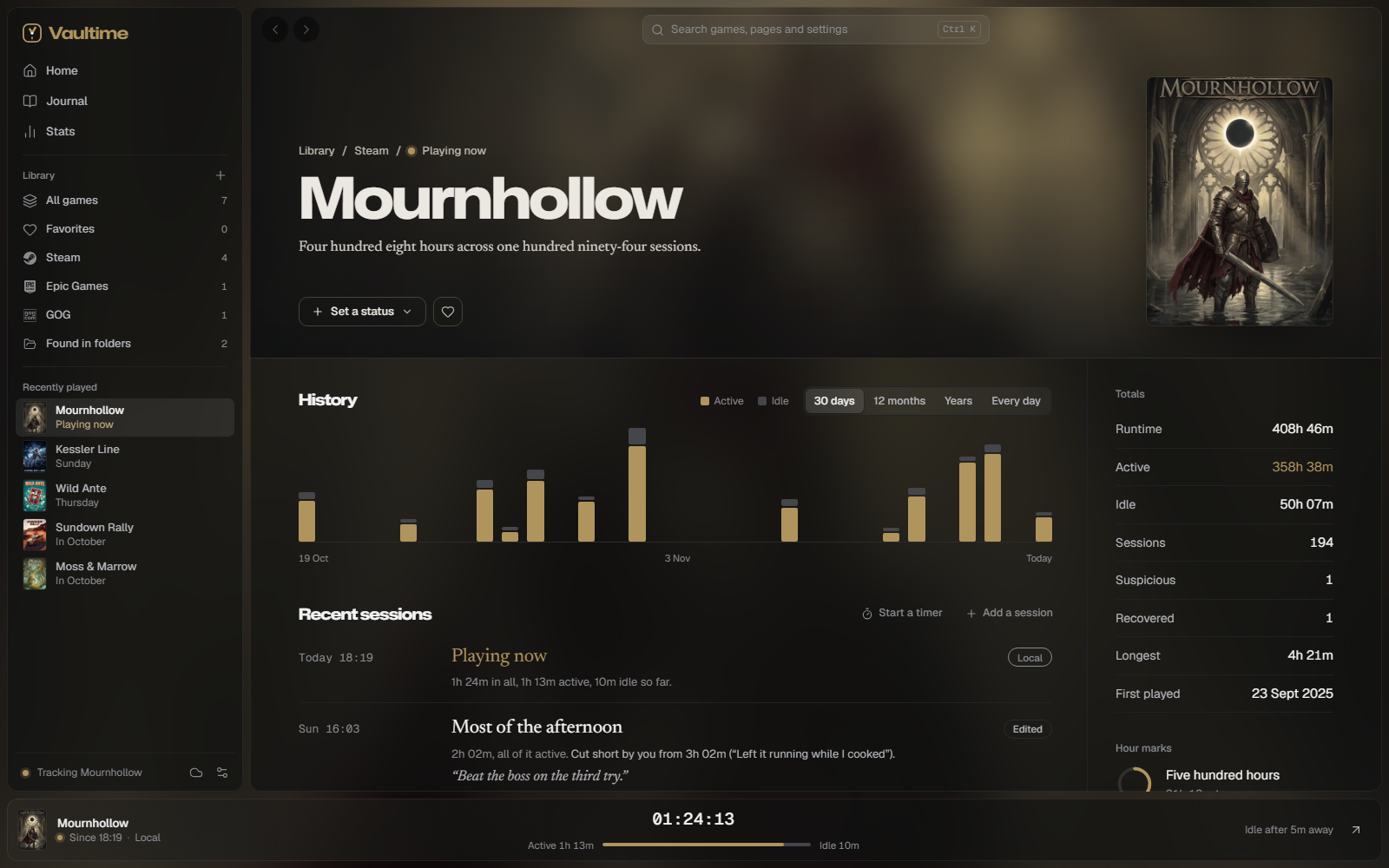
Every game has a page in the colors of its cover, with its history, its totals and the settings that decide how it is tracked.
On this page
History #
History charts the game's active and idle time over the last 30 days, 12 months or all Years. Every day shows a calendar of the year for this game alone, and clicking a day opens that day in the journal.
Sessions and the event log #
Recent sessions lists the game's latest sessions with their labels. Point at one to add a note or correct it, use Add a session for play Vaultime did not see, and Start a timer to time play away from the PC as it happens.
The Event log below lists the events in the records of the game's sessions that say something: when tracking started, sleep left out, flags with their reason, the end, corrections and sessions added by hand. The times saved along the way stay out, and only the newest 12 entries show. It is the place to look when a number seems off.
Totals #
The totals show the game's runtime, active and idle time, the number of sessions, how many were Suspicious or Recovered, the longest session and when you first played it. With playtime imported from Steam, Before Vaultime shows that part on its own.
Hour marks shows how far the game is from its next mark, as a ring, and lists the marks it passed with the day of the session that took it past. Marks passed in playtime from before Vaultime say so. The marks are ten, twenty-five, fifty, a hundred, two hundred fifty, five hundred and a thousand hours, then every thousand.
Status #
The heart next to the status makes the game one of your favorites. Set a status marks a game as Backlog, Playing, Finished or Dropped. The status shows in the journal on the day you set it, and the library can filter and group by it. A second install that counts as the game keeps the status it had, but the game shows its own until you unlink the install.
Cover art #
Where covers come from #
Steam games get Steam's own cover from its library cache. For other games Vaultime looks through the install folder and the program's folder, three levels deep, and prefers files named like a cover, capsule, poster or banner over logos and screenshots. Scan folder looks again.
The Cover section groups images into Added by you and Found on this PC. Click one to make it the cover.
Your own images #
Add image takes a picture in PNG, JPEG, WebP, GIF, BMP, ICO, TIFF, TGA, QOI, the PNM family or SVG. You then frame it:
- Drag the image, use the mouse wheel or the slider to zoom.
- Fill covers the whole frame, Fit whole image shows all of it.
- Space next to a photo fills with a blurred, dimmed copy of it. A logo with a see-through background gets a plain backdrop in a fitting shade.
- Use as cover saves it. Adjust frames the current cover again later.
Vaultime keeps a copy of each image, so the original file can move or go away.
Deleting images #
The cross on an image deletes it after you confirm. The file it came from is never touched, so Scan folder finds an image Vaultime found there again.
Colors from the cover #
The page takes its tint from the cover, and so does the game's mark in the journal. Its art also fills the window behind the panels while the page is open, unless Settings, Appearance shows a picture or no background.
One game, two installs #
A game you own in two launchers, say through Steam and GOG or in the Xbox app and on Steam, can count as one game. On the page of the copy you want to fold in, pick a game under Counts as. From then on:
- Both installs stay tracked, each with its own program.
- The library, journal, stats, live bar and tray show one game with one history, under the title, cover and colors of the game it counts as.
- Its page names every launcher in the line above the title and lists the installs under Also counts, each with its program, a way to edit it and Unlink.
- Each session says which install recorded it, for example Played through GOG.
- Two installs running at the same time count once in the stats.
Linking changes nothing in the record of any session, so Unlink brings the install back as a game of its own with its own sessions, at any time. Deleting a game also deletes the installs that count as it, so unlink first to keep one. When you merge another PC, its linked installs come along as one game too.
Tracking #
The Tracking section shows the program Vaultime watches and how the game is recognized, by its full path or by any game program in its install folder. It also holds:
- Count only when no other game runs
- For launchers and game clients. Its time beside another game is set aside, see How playtime is counted.
- Edit
- Changes the title, the program and the install folder, for example after a game moved to another drive.
- Hide
- Leaves the game out of the library while it is still tracked. See Getting started.
- Delete
- Removes the game and all of its sessions from this PC. Backups made earlier keep them, and the ledger notes the removal. Check It is not a game to make sure its program is never suggested or tracked again.